The openSUSE Goblin Team are pleased to announce the first public release of Smeegol.
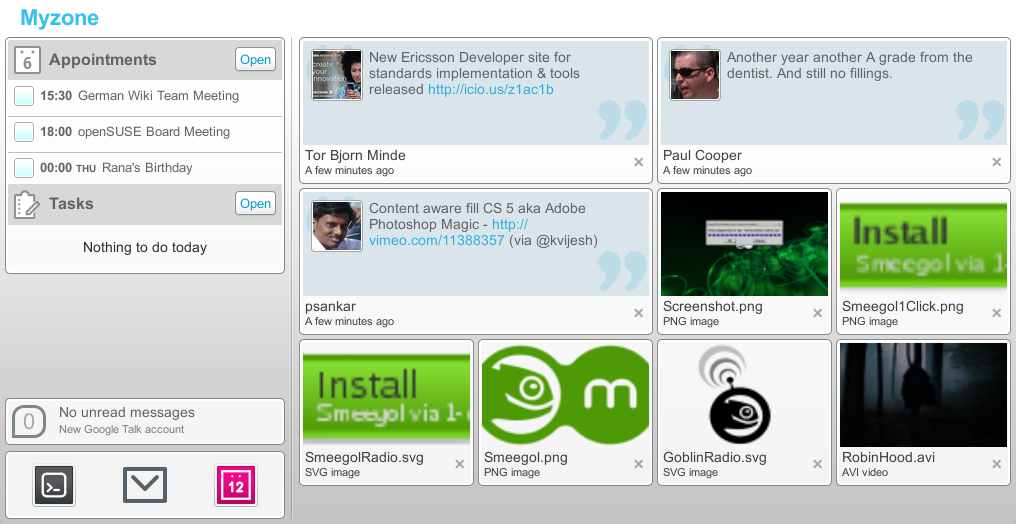
Smeegol is based on the netbook user interface that came from the MeeGo(TM)* project. Smeegol offers the latest Banshee’s powerful music player, a newer Evolution Express as mail and agenda client and several additional social networks.
The MeeGo project, a collaborative effort by Nokia, Intel and a quickly growing community of volunteers under the umbrella of the Linux Foundation, aims to create an operating system designed for small-formfactor devices with limited computing power and screen estate. Think about platforms such as netbooks/entry-level desktops, handheld computing and communications devices, in-vehicle infotainment devices, connected TVs, and media phones. Novell is a part of the MeeGo effort, working with the Linux Foundation on their build infrastructure and official MeeGo products. MeeGo is using increasingly more openSUSE technology, including zypper and other system management tools.
Smeegol is an openSUSE volunteer effort by the Goblin Team to create an openSUSE interpretation of the MeeGo(TM)* user experience, offering the compelling advantages of the openSUSE infrastructure. Users are able to pull from the full openSUSE ecosystem for applications, using repositories on the Build Service and other 3rd party repositories. Moreover, thanks to SUSE Studio anyone can now easily create a customized Smeegol based OS from a convenient webinterface! On SUSE Gallery you can find an appliance (Featured Appliance this week) ready to be cloned for customization. Finally, openSUSE users can easily install Smeegol using the openSUSE one click install technology.
Key features
Smeegol 1.0 has some unique features to both stock openSUSE & MeeGo(TM)*:
- Media playback is provided by the latest offering from the latest Banshee Project, version 1.8.0. This provides users with the ability to purchase music directly from within the application using Amazon’s MP3 store. The Miro Guide is also available out of the box so you can hunt for the perfect podcast. Besides the latest version of Banshee, we also provide the Community Extensions. These add additional functionality should you desire, like sharing music with friends over IM using Telepathy, stream music from Magnatune, discover internet radio stations with LiveRadio and a nice shuffle-by-similar and fill-by-similar modes, based on your songs’ acoustic similarity using Mirage.
- A full range of social network support including Facebook, Twitter, MySpace, Flickr and Digg.
- Network connectivity using NetworkManager.
- Choice of web browsers – both FireFox and Chromium are supplied (you can install others if you wish)
- Choice on how to handle your PIM data – using a single application (full Evolution) or compartmentalise it using Evolution Express
Getting It
You can get a live Smeegol system for 32 and 64 bit systems. Both images are hybrid iso, so you can burn it onto any removable media – disc or disk.
openSUSE users can install Smeegol by clicking this link: ![]()

Find a SUSE Studio image, ready to be cloned and customized, on SUSE Studio image on the SUSE Gallery here.
Joining In The Fun
The Goblin team comprises several openSUSE community members, and they’re a friendly bunch always on the look out for help. So why not jump on board and join us on IRC – #opensuse-moblin on Freenode; or join on the mailing list – opensuse-goblin@opensuse.org (pretty low traffic). Currently Smeegol is not part of the upcoming openSUSE release (Factory) and we can certainly use a hand in getting it in there.
Bugs, Issues, Enhancements
As this is a first release there are potentially gremlins that try and ruin your fun. Firstly sorry if you encounter any, but please file a bug. If you have a feature you would like please file a request in openFate. Consider helping out with the solution, we’re very much open for help! For other issues, e-mail us and we’ll point you in the right direction.
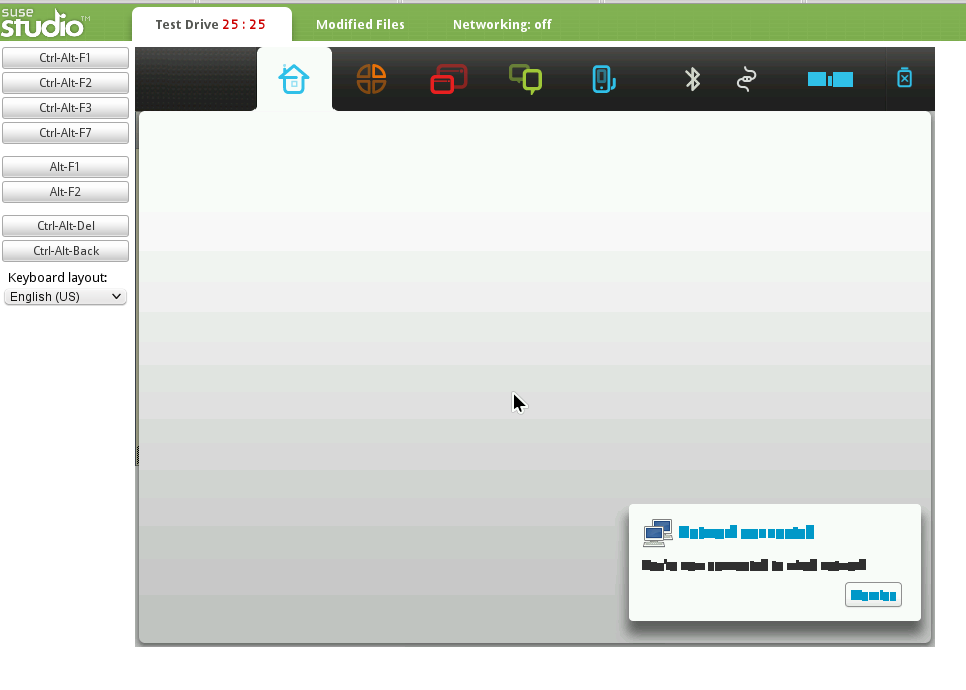
Notice that unfortunately Smeegol does not play well in a virtualized environment (hence a broken SUSE Studio Testdrive).
Thanks
There are many people to thank for helping us realise this milestone. This has been a true community effort, with help from upstream Banshee and MeeGo(TM)*, and also from the many teams within openSUSE including the GNOME, KDE and LXDE teams. A big thank you to all of you.
*MeeGo is a trademark of the Linux Foundation. Please note that the Smeegol effort is an independent community project and not part of the Novell and Linux Foundation efforts.
Both comments and pings are currently closed.


Hi there :-)
I was exited about your idea: a Meego interface on top of OpenSuse so I downloaded the iso and made a bootable usb-stick, using Unetbootin.
But it wouldn’t boot on my netbook, a Compaq Mini 10-100. Intel Atom n270, Intel 945G Graphics.
it will not work with unetbooting.
u need to copy directly to usb, find novell image writer from suse studio , small application for windows which will help you put your contents on the stick. If you have linux use the dd command.
in windows, you can use a program called win32diskimager.
Do you mean:
dd if=PATH_TO_SMEEGOL_ISO of=/dev/sdb [physical path to device]
while making sure that your usb device is unmounted?
Wouldn’t be bad to give this info on top of the site with bold text.
Also, maybe make the download link for the ISO stand out a bit more.
TNX! :)
Wow! i tried MeeGo but my internal 3g modem don’t work.
I hope that distribution could get to work it:)
meanpt: same problem – 64bit version on VBox
Won’t boot on my netbook, Eee PC 1000HA.
For me working, just need to edit /etc/sysconfig/windowmanager and change default wm to startmoblin
Is there any touchscreen support?
Load it on a Vbox virtual machine with 450 MB of RAM allowed. I got the upper iconized bar with a complete white area below. When pointing cursor over the icons instead of a description with text characters, I only got a sorte of a text made of white rectangles. By clicking on the icons I got movement on the cursor, could guess a new screen window was shown but didn’t see any additional icons. Session ended. By the way, it took a really long time to load into a live session … or something like that ,.. :)
@meanpt: having exactly the same problem. VMware and VBox – same effect. Downloaded the 32-bit version.
Couldn’t get it to work… there is a Smeegol entry in the sessions menu, but it won’t work, and just load KDE.
Same issue here….takes me back to login screen…:(
Greetings,
I just subscribed to opensuse-goblin@opensuse.org and found there that if you delete ksmolt thinsg can go better.
Yes, I have now managed to pass the login screen and that’s al for the moment. The menus on the far left are KO. I’ll keep on searching/file a bug?
Best,
Jimmy
On my Samsung N150Plus NetworkManager doesn’t remember credentials for wireless network and password for unlocking keyring database.
Sometimes it happens that I have empty MyZone bookmark. Why? I realy don’t know.
Loaded onto Dell Netbook,but does not recognize Broadcom BCM 4322. Otherwise
niceone.
Hello
I tried it to run in VirtualBox 3.2.8, after converting raw disk image to vdi.
I ended in TWM :-(
Hey, seems good. I have it running via USB – can you install it on the HDD? I did not see that option during boot up.
Congratulations. Smeegol is great. Perfect. My 3G works very well.
On my Samsung N150Plus, wireless card Broadcom BCM4312 works well after adding Packman repository and installing broadcom-wl.
Just tried Smeegol, my Huawei EM770W seems to be recognized right. Now i’m also thinking about installing it on HDD. Is there an option. Found nothing in boot menu. Yast is the right way to install it, or?
To install it, just in the applications’ zone click on settings & search for install U’ll find it :) Good luck
can anybody tell me if there is a thread for support, yet? where can i get help? i.e. the internet panel doesn’t work for me and smeego doesnt connect to twitter…
Installed to a netbook N150(Samsung) from 16GB USB using Opensuse Image Writer tool and below so far have been tested.
1. Changed default GRUB 8 secs -> 60 secs, as the netbook is dual boot with Win7 Basic.
2. Almost all works so far; wired,wlan,touchpad…except webcam as I haven’t tested it yet.
3. Installed xampp(tgz extract) as I do web and works flawlessly.
Installed other packages(python,ruby,gcc etc…) from Opensuse 11.3 repo and no problem so far…
Need some help here.
Downloaded the “.iso” file using wget and burned it to a USB, after renaming the “.iso” file to “.raw”. Used for burning “novell SUSE Studio Image Writer for Windows” (ImageWriter.exe) from ftp://ftp.berlios.de/pub/kiwi/ImageWriter.exe.
Now when I try to boot from the USB I get the message
– message begin
ISOLINUX 3.86 0x4c31e9d2 EHDDisolinux: Image checksum erro, sorry…
Boot failed: press a key to retry
– message end
The sha256 signatures do match. Any assistance will be highly appreciated.
“ISOLINUX 3.86 0x4c31e9d2 EHDDisolinux: Image checksum erro, sorry…”
- Your USB image is corrupted, try comparing the md5sum of the downloaded iso against the ftp/http download link.
I’ve noticed on the distro that after installing and clicking Accessories/Settings, all icons changes and UI becomes unstable sometimes that clicking an app would messed-up the interface,e.g. try clicking Accesories/Settings then click the screenshot tool and do some screenshot… ;(
Anyway, there’s always alt-ctrl + backspace… c”,)
I’m having a weird problem. When i tried Smeegol with the live USB image, i had my networking fine. I was able to connect to both my LAN and WIFI networks. But after installing it on my HDD, even though my network is connected at the backend, meego refuses to recognise any networks, it just keeps saying “not connected” even though i’m able to browse the web, update and everything else. This is annoying because unless meego recognises the network, none of internet services of Meego will work(messenger, facebook, twitter, etc).
I tried out the live CD to make sure Smeegol could connect to the internet using my usb wireless dongle. Worked fine. Very strong and stable signal. I browsed the web for awhile and then installed the distro onto my hard disk. Now it won’t connect to the internet. I’ve spent hours messing with network settings to no avail. Ridiculous. Smeegol 1.0 should have a big “B” for Beta.
The live CD is set up for a user controlled network, but the installed system is not. Here’s how to remedy that:
Click applications icon.
Click System.
Click Yast.
Click Network Settings.
Click Global Options tab.
Click User Controlled with network manager.
Click OK.
Ignore error message.
Exit Yast.
Click Network icon at top of screen.
Available networks are scanned and displayed. Select yours and enter password if required.
That’s it.
All the above is undocumented, because users are supposed to know these steps through intuition or telepathy or considerable experience with Linux. Users without such mental gifts or experience are left to the frustrations of trial and error, as I was, and/or searching the internet for tips, as you have done.
Oh, it was also necessary for me to blacklist a driver for my wireless adapter. After a lot more time searching the internet, I was able to do that, too.
Smeegol is working fine now.
Tried installing it on my lenovo S10. It does not recognize the wireless chip on that machine. Everything else works fine (except the title label “internet” which says it is non-functional. Could you please do another spin of smeego which recognizes Broadband 802.11g network adaptor. Thanks. Smeego will make a netbook so much more responsive.
Just installed the package from the one click installer. All seemed ok until there were some file version conflicts which were easy enough to sort out. My problem is that after install and a reboot at the login screen when I choose MeeGo as the desktop environment the screen goes blank and it seems to be doing stuff then goes back to the login screen. Bit disappointed but then I am using a Dell D420 so the hardware is not netbook spec, didnt think it would make any difference though.
Would appreciate any insight anyone may have.
Don’t know if I am missing something obvious but I recently attempted the ‘testdrive’ for Smeegol. Guess what – it comes up with a login screen. Nowhere to be found is any indication of what frigging userid/password to use. Please advise.
@Neil try linux/linux i think that’s the default for this build.
Tryed the last aviable Release too and also ending up in a white Screen .. is there a Bugfix for this? It makes the whole OS senseless..
Anyone know how to install from a flash drive… I can get the OS to boot up but not the installer :( (Its like a live cd without install ability)
nvmd,
For anyone having the same problem as me its in the applications under “Other”
Wow! really amazing! it just work!
I #dd the iso into a USB drive then boot it in a Acer Aspire One netbook and all stuff worked! even my USB HUAWEI 3G USB modem.
I am a KDE user, I would like to use a KDE netbook system but for now I need to accept that this GNOME netbook interface is very cool, beautiful and useful.
Great to see YaST! and openSUSE stuff in a Meego.
Thank you! great job!
Downloaded the Smeegol-BUILD -istalled it with dd to usb. Booted it in my Asus EEE 900/16 gb.
The usb-live booted with no trouble at all and then I used the live-installer to intall to the netbooks ssd. You find the installer in “Settings”.
Make an update of your new OS and enjoy!! I thiink it is great.
Currently I copy the image with “sudo dd if=/home/?*/Downloads/Smeegol.i686-1.1.0-Build6.3.iso of=/dev/sdb?” to a USB stick … after doing a “umount /dev/sdb?” to the device which “mount” showed me beeing this USB stick.
The old Smeegol 1.0 only displayed a white screen after booting, maybe because of the SiS GPU on my FSC V5535 or the GMA500 GPU on my Sony Vaio P VGN-P11 :(
MfG, MEX